ReminderBridge Sync Troubleshooting Guide
If ReminderBridge is not syncing as expected, start by reconnecting your Google account. If the issue continues, you can reset the app and start fresh.
Keeping ReminderBridge Running
ReminderBridge must remain running for scheduled synchronization. The main window may be closed.
For laptop users, open System Settings > Battery > Options and set Wake for network access to Always.
For desktop users, open System Settings > Energy > Options and set Wake for network access to Always.
ReminderBridge uses native background tasks, but synchronization still requires the app to be running and an internet connection to be available. After wake, missed work resumes when the connection is available.
First Sync When Apple Reminders Has No Lists
On a new installation, the first synchronization may not proceed if Apple Reminders does not contain any lists. This is most likely to happen if you have never used Apple Reminders before.
If Apple Reminders is completely empty:
- Open Apple Reminders and create a temporary empty list.
- Return to ReminderBridge and retry the synchronization.
- Confirm that ReminderBridge completes the sync and creates or connects the intended lists.
- Delete the temporary list in Apple Reminders if you no longer need it.
Delete only the empty temporary list. Do not delete a list selected or connected through ReminderBridge.
Reauthorizing Google
If syncing fails, or if no Google Tasks lists appear in ReminderBridge, sign out and reconnect your Google account.
ReminderBridge includes internal checks to prevent unintended syncing if your authorization expires.
Resetting ReminderBridge
If reauthorizing Google does not resolve the issue, you can reset ReminderBridge’s local synchronization data.
Resetting does not intentionally delete your existing tasks or recreate lists, but it removes the local relationships ReminderBridge uses during reconciliation. Existing tasks can be treated as new, and previously completed tasks can return. Back up important reminders and tasks before continuing.
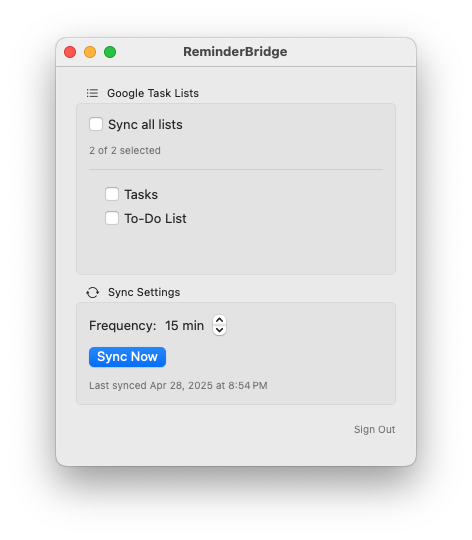
- Deselect any currently selected lists.
- Delete the duplicate list on the opposite side of the sync. For example, if the list originates in Google Tasks, delete the Apple Reminders version.
- Click Sync Now, then click Sign Out (bottom right) to force the authentication token to refresh when ReminderBridge restarts.
- Quit ReminderBridge.
- Delete the folder
~/Library/Containers/aeriform.ReminderBridge. - Restart ReminderBridge.
After the restart, review the selected lists and the most recent task information before running the first sync.
Need Help?
ReminderBridge is actively developed. Contact support or join the forum if you run into an issue or have feedback.